By Anamika Dey, editor | Last updated: November 13, 2026
What This Article Covers
|
Erase your phone before selling it, or you may be handing over more than the hardware. Picture it: you have just set up your new phone, the old one is sitting in a drawer, and someone has offered you a fair price for it. You delete a few photos, clear some chats and hand it over.
That is not enough. Deleting something inside an app only hides it from that app. Apple says it plainly in its iPhone guide: deleted data stops showing up in your apps, but it is not erased from the phone’s storage. To remove it, you have to erase the whole phone. Android works the same way.
The good news is that erasing a phone takes about ten minutes. The part that needs care is the order. Get it wrong and you can lock yourself out of your own accounts, or hand over a phone the new owner cannot even set up. So if you want to erase your phone before selling it, go through these five steps in sequence.
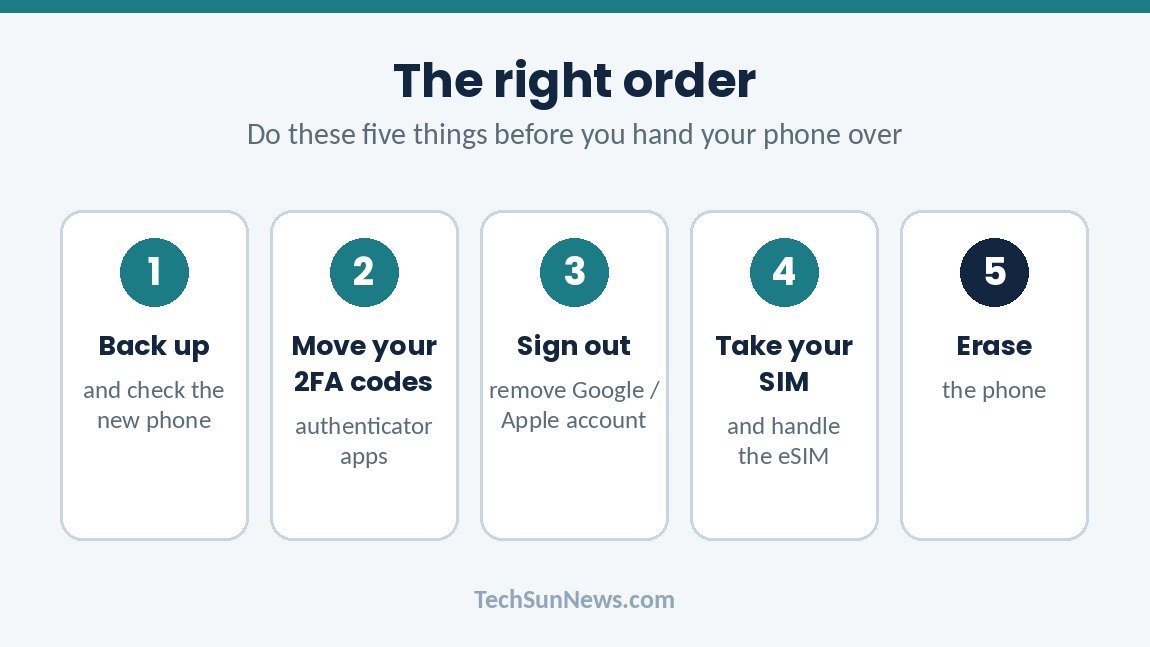
Step 1: Back up everything, then check the new phone
Back up first, and make sure the backup actually finished. Your photos, contacts, messages and files should be on the new phone, or in a backup you can open, before you touch the old one. Once the erase starts there is no undo.
On an iPhone that means an iCloud backup or a backup to your computer. On Android it is your Google backup, or your brand’s own tool if you use one (Samsung has Smart Switch, for example). Then pick up the new phone and look. Are the photos there? The contacts? Chat apps like WhatsApp often have their own backup setting, so check that one too. If you cannot say yes to all of it, do not erase yet.
Step 2: Move your authenticator apps
This is the step that catches people. Many authenticator apps keep your login codes on the phone only. If you erase the phone before moving them, you may lose your way into the accounts that rely on those codes, and those are often the ones that matter most, like your email and your bank.
Some authenticator apps can sync or transfer to a new phone, and some cannot. Check yours before you wipe anything. Set the codes up on the new phone, then log in to one or two important accounts using the new phone to prove it works. If you are not sure why codes beat text messages, our guide on authenticator app vs SMS explains it.
Step 3: Sign out and remove your accounts
Both Apple and Google build in an anti-theft lock that stays on after a wipe. Apple calls it Activation Lock. On Android it is Factory Reset Protection. If your account is still linked when the phone is erased, the next owner can be asked for your Apple or Google login and get stuck at setup.
On an iPhone, Apple says that erasing the phone turns off Find My and Activation Lock. The steps in Step 5 sign you out and erase in one go.
On Android, do the removal yourself first. Open Settings, go to Accounts (some phones call it Passwords & accounts), tap your Google account and choose Remove account. Do it for every Google account on the phone. If you have a Samsung account, remove that too.
While you are at it, open your password manager on the new phone and make sure you can log in. If you do not use one yet, this is a good week to start. Our password manager guide is a place to begin.
Step 4: Take your SIM, and sort out the eSIM
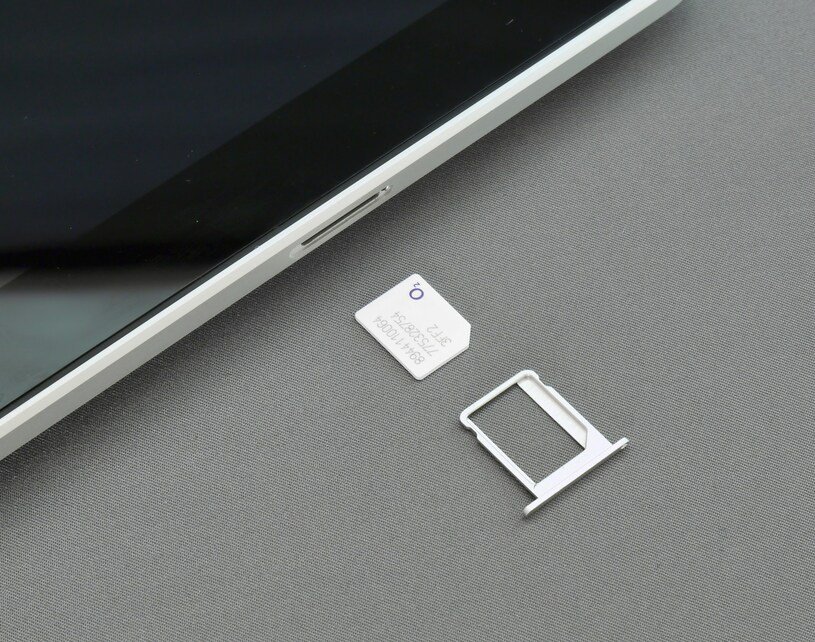
Pull out your physical SIM card and keep it. It carries your phone number, and your number is how many of your accounts send codes and reset links. Do not hand it over by accident.
If your phone uses an eSIM, there is no card to remove. Apple says that if you are selling a phone with an eSIM, you should choose to erase the device and the eSIM profile when it asks. Android menus vary by brand, so check your carrier’s instructions. Our eSIM explainer covers how eSIMs work and how to move one. And if you worry about someone taking over your number, read about SIM swap attacks.
Step 5: Erase your phone before selling it
Now you can erase it. Menus change between brands and software versions, so if yours looks different, use the search box in Settings and type “erase” or “reset”.
On an iPhone
- Make sure your backup is finished.
- If your phone runs iOS 26 or later, open Settings, tap your name, scroll down and tap Sign Out, then choose Erase this iPhone. This is the route Apple lists for iOS 26.
- On older versions, go to Settings > General > Transfer or Reset iPhone > Erase All Content and Settings.
- Enter your passcode, and your Apple Account password if Find My is on.
- If it asks about the eSIM and you are selling the phone, erase the eSIM profile too.
Apple says Find My and Activation Lock turn off when you erase, and any cards you added to Apple Pay are removed. Your content stays in iCloud, though. Erasing the phone does not delete it from there. Two more points from Apple’s sell, give away or trade-in page: if you are trading in at an Apple Store, stop and do not erase the phone, because they handle it there; and if you are switching to a non-Apple phone, deregister iMessage first so texts from iPhone friends still reach you.
On an Android phone
- Check that your accounts are removed (Step 3). If your phone has an SD card, take it out and keep it. A normal factory reset often does not wipe removable storage.
- Open Settings > System > Reset options > Erase all data (factory reset). On Samsung phones it is usually Settings > General management > Reset > Factory data reset.
- Tap Reset or Erase all data, enter your PIN, and confirm.
- Let the phone restart. It should land on the welcome or setup screen.
Google has its own page, Reset your Android device to factory settings, if you want to double-check your model.
iPhone vs Android at a glance
| iPhone | Android | |
|---|---|---|
| Where to erase it | Settings > your name > Sign Out > Erase this iPhone (iOS 26 or later), or Settings > General > Transfer or Reset iPhone > Erase All Content and Settings | Settings > System > Reset options > Erase all data (factory reset). On Samsung: Settings > General management > Reset > Factory data reset |
| Anti-theft lock | Activation Lock | Factory Reset Protection |
| Do this first | Back up, move your authenticator, sign out of your Apple Account | Back up, move your authenticator, remove your Google account (and Samsung account) |
| SIM and eSIM | Keep your physical SIM. Choose to erase the eSIM profile when asked | Keep your physical SIM. Check your carrier for eSIM steps |
| What stays online | Your iCloud backups and photos | Your Google backups and photos |
What to check after you hand it over
Before the phone leaves your hands, switch it on and look at the first screen. You should see the welcome or setup screen, not your name, your photos or a lock asking for your password. If it asks for your Google or Apple login, something was not signed out. Fix that first.
Then open the devices list in your Apple Account or Google Account and remove the old phone if it still shows.
If you already gave the phone away without erasing it, Apple’s advice is to ask the new owner to erase it using the steps above. If you cannot reach them, you can erase it remotely, if it is online: on an iPhone through Find My, and on Android at google.com/android/find. Then change the passwords on your main accounts, starting with email. If you want to check whether any of your details have already leaked, our guide on how to check if your data has been leaked shows how.
| The Bottom Line
Back up. Move your authenticator codes. Remove your accounts. Take your SIM. Then erase your phone before selling it, in that order. The two steps people skip, the authenticator and the account sign-out, are the ones that cause real trouble: you lose access to your own accounts, or the buyer cannot use the phone. |
Frequently Asked Questions
Does a factory reset delete everything?
For selling or giving away, the built-in erase is what Apple and Google tell people to use. It removes your content and settings from the phone. It does not remove what is stored online, like iCloud or your Google backups, and no normal reset comes with a guarantee against specialist data recovery. If a phone held very sensitive material and you do not trust where it is going, use an official trade-in or recycling programme instead of selling it to a stranger.
Should I erase my phone before a trade-in?
Check the rules first. Apple says that if you are trading in at an Apple Store, you should stop and not erase the device. For an Android phone you post to Apple as a trade-in, Apple says to back up, erase it, and remove SIM cards and memory cards. Other shops and carriers have their own rules, so ask before you wipe.
What if the buyer is locked out because I forgot to sign out?
On an iPhone the buyer is probably stuck on Activation Lock. You can remove the phone from your Apple Account through Find My or iCloud. On Android, Factory Reset Protection means the new owner needs your Google login to get past setup, so look at the devices list in your Google Account and remove the phone from there. Never send your password or a login code to a buyer over chat. That is a common way scammers get into accounts.
| Over to you
How many old phones are sitting in your drawer right now, and has any of them ever been properly wiped? Tell us in the comments. |
| Editor’s Observation
Most phone-wipe advice talks as if the phone is the thing you are protecting. I think the bigger risk is the accounts around it. A wiped phone with a forgotten authenticator can cost you more time than a lost phone. So if a guide starts with “factory reset”, skip ahead and do the authenticator step first. And if you have an old phone in a drawer, wipe it this week anyway. It is probably still signed in to your accounts. |
| Related guide
Want one place to check the rest of your account safety? Our Scam & Account Safety Checklist (13 pages, $4.99) covers passwords, authenticator apps, SIM-swap protection and what to do in the first hour after a scam. |