Anamika Dey, editor
By TechSun News Desk | techsunnews.com | August 18, 2026 | Tech | 11 min read
“Storage space running out.” It’s the notification that shows up at the worst possible time — mid-update, or just as you’re about to record something you’ll never get back. And the usual advice is to delete your photos or buy a new phone. You need to do neither. Android actually gives you more storage tools than any other phone platform, and most people never open them.
Here are twelve ways to reclaim real space, ordered easiest and safest first. Do the first three and most phones stop nagging you. One rule before you begin: back up anything irreplaceable — photos, documents — before any big deletion, and check the trash/Recently Deleted folders before emptying them. Where steps differ between phone brands, you’ll see notes for Samsung Galaxy and Google Pixel, since those two cover most readers.
| ⚡ The quick answer
How do I free up storage on Android? Open Settings › Storage to see what’s using space, then use the built-in “Free up space” tool, clear your Downloads folder, delete large videos, uninstall unused apps, and clear the cache of heavy apps. The Files by Google app can find junk and duplicate files automatically. Most Android phones can be cleared out in a few minutes without deleting anything you care about. |
Start here: see exactly what’s using your storage
Before deleting anything, find out where your space went. Go to Settings › Storage and let it load. You’ll see a breakdown by category — apps, images, videos, audio, downloads, system — so you can target the real culprits instead of guessing. It’s rarely what you’d expect; for most people it’s videos and one or two social apps.
Samsung Galaxy: the equivalent lives at Settings › Device care › Storage (sometimes shown as Battery and device care), which adds Samsung’s own cleanup tools. Pixel and most stock-Android phones use Settings › Storage directly.
1. Use Android’s built-in “Free up space” tool
Android has a one-tap cleanup built right in that most people never notice. In Settings › Storage, tap Free up space (on Pixel and stock Android, this opens Files by Google’s cleanup view). It surfaces the obvious wins — junk files, downloaded items, backed-up photos, and large or unused apps — and lets you clear them in a couple of taps. Start here; it does a lot of the work for you.
2. Delete large videos and photos
Video is almost always the biggest space-eater. A few 4K clips can equal hundreds of photos. In your Storage breakdown, tap Videos (or open Google Photos and sort by size) and clear the large files you no longer need — old screen recordings and duplicate clips especially. If your photos are already backed up to the cloud (step 9), you can remove the local copies safely.
3. Clean out your Downloads folder
The Downloads folder is where forgotten files go to pile up — PDFs, images, APKs, ZIP files, things you opened once. Open Files by Google (or your phone’s Files/My Files app) › Downloads, sort by size, and delete what you don’t need. This is a quick, completely safe win that often frees more than people expect.
4. Uninstall apps you never use
Every unused app takes space twice — the app itself plus the data it accumulates. Go to Settings › Apps, sort by size, and uninstall anything you haven’t opened in months. Be honest: the game you played once, the shopping app from a single purchase, the duplicate utility.
A gentler option — archiving: if you want to keep an app’s icon and data but reclaim most of its space, Android now lets you archive apps instead of fully uninstalling. An archived app frees up much of its storage while keeping your data, and re-downloads with one tap. Look for the archive option in Settings › Apps or enable automatic archiving in the Play Store settings.
5. Clear app cache — but know what you’re doing
This is Android’s biggest advantage over iPhone: you can clear an individual app’s cache directly, without deleting the app. Cache is temporary junk an app builds up — and for heavy apps like Chrome, Instagram, TikTok and Facebook it can balloon to gigabytes.
How: Settings › Apps › [the app] › Storage › Clear cache. This is safe — it removes only temporary files, not your logins or data. Do NOT tap Clear storage (or Clear data) unless you mean it, because that wipes the app back to a fresh install, logging you out and deleting its saved content. Clear cache good; clear storage drastic.
6. Use Files by Google to find junk and duplicates
If you install one thing from this guide, make it Files by Google (free, and pre-installed on many phones). Its Clean tab actively hunts down the space-wasters you’d never find manually: junk and temporary files, duplicate files, large files, old screenshots, memes in your download folders, and unused apps — each as a one-tap suggestion. It’s the closest thing Android has to an honest, built-in “cleaner,” and unlike the sketchy third-party “booster” apps (which you should avoid), it’s made by Google and safe to trust.
7. Delete old WhatsApp and Telegram media
Messaging apps are silent storage monsters on Android, because by default they auto-save every photo, video, meme and voice note anyone sends you — straight into your phone’s storage and gallery. Years of group-chat clutter hides here.
Clean it: in WhatsApp, go to Settings › Storage and data › Manage storage, which sorts by size and by conversation and lets you bulk-delete large or forwarded media. Telegram has a similar Data and Storage › Storage Usage screen.
Prevent it: turn off auto-download in WhatsApp’s Storage and data settings so it stops saving everything automatically. This single change keeps your storage from refilling.
8. Move photos and videos to the cloud (or a computer)
The most durable fix for a photo-heavy phone is to get the originals off it. Google Photos backs up your library and then lets you remove the local copies with its Free up space option (in the Photos app menu), so you still see every photo while reclaiming the device storage. Alternatively, plug into a computer and copy them across. For how the cloud services compare, see our cloud storage comparison. Note the free Google account tier is 15GB shared across Photos, Drive and Gmail, so a big library may mean paying for Google One.
9. Use an SD card, if your phone supports one
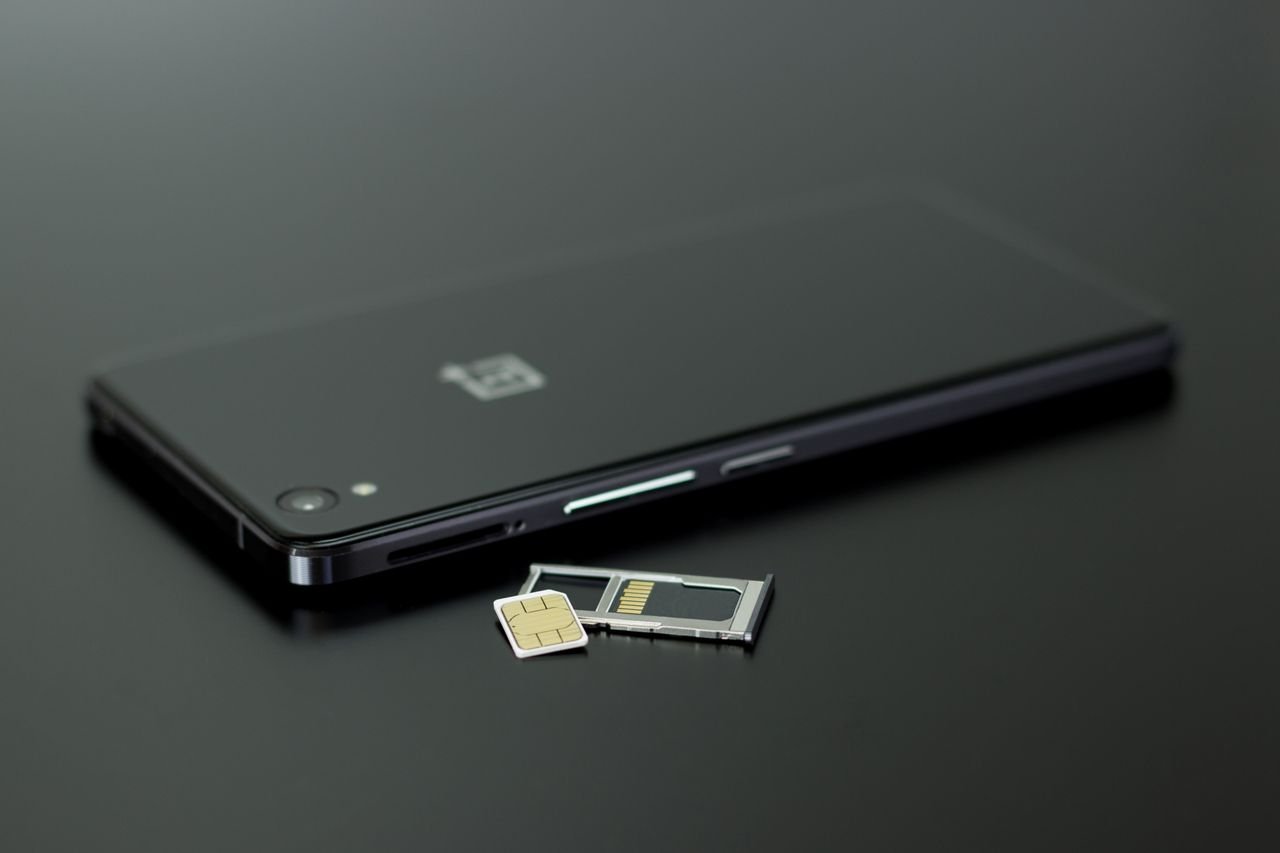
Here’s something iPhones can’t do: many Android phones (especially mid-range and Samsung models) support expandable storage via a microSD card. If yours has a slot, adding a card is the cheapest way to massively increase space. You can move photos, videos, downloads and some apps onto it. Check for a card slot on your phone’s tray; flagship phones increasingly omit it, but a huge number of Android devices still have one.
10. Empty the trash in Photos, Files and your gallery
The trap that catches everyone, on Android too: deleted photos and files don’t leave immediately. Google Photos keeps them in Trash for up to 60 days, and Files by Google and Samsung’s Gallery have their own recycle bins. Deleting without emptying these frees nothing. Open each app’s Trash/Recycle bin and empty it — after confirming you don’t need anything inside, since that’s the point of no return.
11. Turn on automatic storage management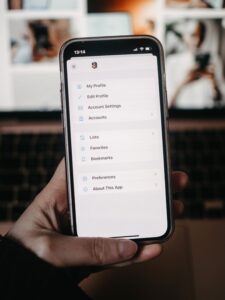
Stop the problem before it starts. On Pixel and stock Android, enable Smart Storage (Settings › Storage › Smart Storage on supported devices), which automatically removes backed-up photos older than a set period. Samsung offers similar automated cleanup within Device care. Combined with WhatsApp auto-download turned off (step 7), this keeps your storage from silently refilling.
12. As a last resort: back up and factory reset
If your phone is still cramped after all of the above — common on 64GB and older budget models — a full backup followed by a factory reset clears accumulated system cruft that nothing else reaches. Back up first (Settings › System › Backup, or Samsung Cloud/Smart Switch), then Settings › System › Reset options › Erase all data. This is the nuclear option; try everything else first.
| 💡 One thing worth knowing: phone storage vs Google account storage
Just like on iPhone, people mix these up — and it costs them money. They’re separate. Your phone storage is the physical space inside the device (64GB, 128GB, 256GB). Your Google account storage (the 15GB free tier, or Google One if you pay) is space on Google’s servers for Photos, Drive and Gmail backups. Buying Google One does not add space to your phone. It gives you more cloud room — which only helps your device indirectly, by letting you back photos up and then remove the local copies (step 8). If your physical phone is full, the fixes in this guide are what you need, not a bigger cloud plan. Buy Google One only if you specifically want a large photo library kept safely in the cloud. |
The bottom line
A full Android phone almost never means you’ve outgrown it — it means it needs a clear-out, and Android gives you more tools to do that than any other platform. Work down the list from the top: run Free up space, empty your Downloads, clear the cache on your heaviest apps, and let Files by Google find the junk. Most people reclaim plenty of room in the first few steps. And remember the golden rule — a bigger Google One plan doesn’t add space to your phone. If your other devices are creaking too, our companion guides on freeing up iPhone storage and speeding up a slow laptop do the same job for the rest of your tech.
| 💬 Over to you
What’s actually eating your Android storage?
Tell us which fix freed up the most space in the comments. |
Frequently Asked Questions
Why is my Android storage full when I deleted everything?
The usual hidden culprits are app caches (which can reach gigabytes), auto-saved WhatsApp and Telegram media, the Downloads folder, and trash/recycle bins that still hold “deleted” files for up to 60 days. Go to Settings › Storage to see the real breakdown, clear the cache on heavy apps, empty your Photos and Files trash, and clean out WhatsApp media — that resolves most “I deleted things but it’s still full” cases.
Does buying Google One free up space on my phone?
No — this is the most common Android storage misconception. Google One (or the free 15GB tier) is cloud storage on Google’s servers, separate from your phone’s physical storage. Buying more doesn’t add device space. It only helps indirectly, by letting you back up photos and then remove the local copies from the phone. If your device is full, you need to clear space on the phone itself using the steps above.
Is it safe to clear an app’s cache?
Yes. Clearing cache (Settings › Apps › [app] › Storage › Clear cache) removes only temporary files and is completely safe — you won’t lose your logins, messages or saved data. What you should avoid unless you mean it is Clear storage or Clear data, which resets the app to a fresh install and deletes its data. Clearing cache is one of the safest and most effective Android cleanups.
Should I use a third-party cleaner or booster app?
Generally, no. Many “cleaner” and “booster” apps add their own background processes, show ads, or overstate what they do — and some are outright risky. Android’s built-in tools and Files by Google (made by Google) do everything a reputable cleaner does, safely and for free. Stick with those and skip the third-party “magic” apps.
| ✍️ Editor’s Observation
Android quietly gives you better storage tools than any other phone — cache clearing, expandable SD cards, Files by Google, app archiving — and yet “storage full” is one of the most common complaints Android users have. The gap isn’t the technology; it’s that these tools sit in menus nobody opens until the phone is already begging for space. So the real trick isn’t any single fix on this list — it’s spending ten minutes with them once, and turning on the automatic ones so it doesn’t creep back. The cheapest phone upgrade is almost always the one you already own, cleaned out. Try that before the checkout page. |
— TechSun News, Tech Desk