
Anamika Dey, editor
Techsunnews.com | Updated October 6, 2026| Tech / Security | 11 min read
Your phone gets warm in your pocket while you’re doing nothing. The battery’s at 40% by lunch when it used to last all day. An app you don’t remember installing is sitting on your home screen. So you type the question millions of people type every month: is my phone hacked?
Here’s the honest answer, and it’s the reason this guide exists: usually it’s not. Most of the scary symptoms have boring explanations — an aging battery, a bloated app, a botched update. But sometimes it really is a hack, and knowing which is which is the whole game. This guide walks through the twelve real warning signs, how to tell a genuine compromise from a phone that’s simply getting old, and exactly what to do if it turns out someone’s in there.
First: can phones actually be hacked? (Myths vs. reality)
Yes — but not the way movies suggest. Nobody is remotely “typing into” your phone in real time. Real compromises almost always come from one of a few routes: a malicious app you installed, a phishing link you tapped, a fake public Wi-Fi network, a SIM-swap where someone hijacks your number, or — rarely, and only for high-value targets like journalists and activists — commercial spyware like Pegasus that can infect a phone with no tap required.
Two myths worth killing right away. First, iPhones are not immune — Apple’s security is strong, but iPhones can still be compromised through malicious profiles, phishing, or targeted spyware. Second, a phone that is genuinely powered all the way off cannot be hacked remotely; the risk resumes when it powers back on. Keep both facts in mind as you read the signs below.
The 12 warning signs your phone may be hacked
No single sign proves a hack. What matters is the cluster — several of these appearing together, especially the last one, is when it’s worth acting.
- Battery drains unusually fast. Hidden software running in the background burns power. If your habits haven’t changed but the battery has, take note (though this is also the single most common false alarm — more on that below).
- The phone overheats while idle. Warm to the touch when you’re not using it can mean background processes are working constantly.
- Unfamiliar apps appear. Apps you don’t remember installing can be disguised monitoring tools. This is one of the clearer red flags.
- Data usage spikes for no reason. Spyware sends your information out, which shows up as unexplained jumps in mobile data — especially data used while the phone sits idle.
- Pop-up ads and redirects. A sudden flood of pop-ups, even outside a browser, points to adware. Never tap them.
- The camera or mic light turns on by itself. On iPhone, a green dot means the camera is active, an orange dot means the mic. On Android, look for the same indicators top-right. If they appear when you’re not using those features, investigate.
- Strange calls or texts. Outgoing calls or messages you didn’t send, or contacts telling you they got odd messages from you, can signal a compromise or a hijacked number.
- Performance suddenly tanks. Apps freeze, the phone lags, everything feels slow because malware is eating processing power.
- Settings change on their own. Security features switched off, a new device-admin profile you didn’t add, or altered permissions can mean someone else has control.
- Security protections get disabled. If Play Protect, your antivirus, or built-in warnings are mysteriously turned off, malware may be clearing its own path.
- Apps request permissions that make no sense. A flashlight app asking for your microphone and contacts is a classic tell. Review what each app can access.
- Unfamiliar account activity. This is the strongest sign of all: password-reset emails you didn’t request, logins from unknown devices, or — the biggest tell — someone knowing private details (your location, the content of your messages) they could only have if they were watching. If you’re not sure, you can check whether your data was exposed in a breach.
| 🔍 Phone Hacked — or Just Aging?
Before you panic, know this: most of the signs above have completely innocent explanations, and assuming the worst leads people to wipe a phone that was perfectly fine. Here’s the honest reality check. A slow phone, fast battery drain, and mild overheating are far more often caused by:
The difference: aging is gradual and affects general performance. A hack usually brings sudden change plus at least one of the pointed signs — unknown apps, data spikes while idle, or the “they know too much” tell. If all you have is a slow, warm phone with a two-year-old battery, you very likely have an old phone, not a hacked one. |
How to check an iPhone or Android right now (free, built-in tools)
Before installing anything, use the tools already on your phone.
On iPhone
Open Settings › Privacy & Security › App Privacy Report (turn it on if it isn’t already). It shows exactly which apps have recently used your camera, mic, and location, and which domains they’ve contacted — a suspicious app often reveals itself here. Then check Settings › General › VPN & Device Management for any profile you didn’t install, and delete it if you don’t recognize it. If you’re a journalist, activist, or otherwise a plausible target, Apple’s Lockdown Mode (Settings › Privacy & Security › Lockdown Mode) is the strongest option available — Apple told TechCrunch in March 2026 it is not aware of any successful mercenary-spyware attack against a device with Lockdown Mode enabled.
On Android
Open Settings and review your app list for anything unfamiliar, then check Settings › Security › Device admin apps and revoke admin rights from anything you don’t recognize (malware often grants itself this to resist removal). Make sure Google Play Protect is on. On newer devices, Google’s Advanced Protection Mode adds an Intrusion Logging feature — built with Amnesty International and rolled out in 2026 — that keeps a tamper-resistant record to help detect sophisticated spyware after the fact.
For a deeper look at what your apps quietly collect even when nothing is “hacked,” our guide on whether your phone is spying on you walks through the everyday permissions worth locking down.
What to do immediately if your phone is hacked
If several signs point to a real compromise, work through these in order. Don’t skip ahead to the factory reset — you want to secure your accounts first.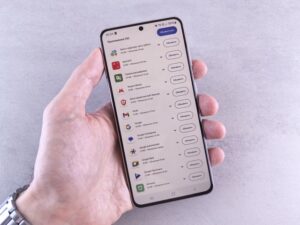
- Disconnect. Turn off Wi-Fi and mobile data (or switch on Airplane Mode) to cut the attacker’s live connection and stop data leaving your phone.
- Update your operating system. Many hacks exploit known bugs that the latest iOS or Android patch already fixes.
- Delete apps you don’t recognize. Remove anything unfamiliar, plus anything installed right before the trouble started. On Android, revoke device-admin rights first if an app won’t uninstall.
- Run a trusted security scan. Use a reputable mobile security app from the official store to quarantine malware.
- Change your important passwords — from a different device. Start with email, then banking and social accounts. Use another device so you’re not typing new passwords into a phone that may still be compromised. A password manager makes this much easier.
- Turn on two-factor authentication everywhere. An authenticator app or hardware key is safer than SMS, which SIM-swap attacks can defeat.
- If problems persist, back up and factory reset. A reset removes nearly all malware. The catch, and most guides skip this: set the phone up as new and do NOT restore an old backup made while infected, or you risk reinstalling the problem. iPhone: Settings › General › Transfer or Reset iPhone › Erase All Content and Settings. Android: Settings › System › Reset options › Erase all data.
One honest limit worth knowing: for the rare class of advanced commercial spyware, even a factory reset isn’t a guaranteed cure, and the right move is professional help plus new hardware. For everyday malware — which is what nearly everyone actually faces — the steps above resolve it.
How to prevent it from happening again
- Keep software updated. Turn on automatic updates; patches close the holes hackers rely on.
- Install apps only from the official App Store or Google Play, and skip sideloaded APKs and “free” versions of paid apps.
- Audit permissions regularly. If an app doesn’t need your mic, camera, or location, revoke it.
- Treat links with suspicion. Most phone compromises start with a phishing tap — the same tactics we cover in our guide to AI scams.
- Use strong, unique passwords and 2FA. A password manager means one breach can’t unlock everything, and a reputable VPN protects you on public Wi-Fi.
- Restart your phone regularly. A reboot clears many temporary background processes — a small habit that genuinely helps.
| 💬 Over to you
What made you check whether your phone was hacked today?
Tell us in the comments which sign brought you here. |
Frequently Asked Questions
Can an iPhone be hacked?
Yes, though it’s less common than on other platforms because of Apple’s security model. iPhones are most often compromised through malicious configuration profiles, phishing links, or — for high-profile targets — sophisticated zero-click spyware. You can check for suspicious activity in Settings › Privacy & Security › App Privacy Report, and remove any unknown profiles under General › VPN & Device Management.
Can Android phones be hacked?
Yes. Android’s openness makes it more exposed, especially if you install apps from outside the Google Play Store. The most common culprits are malicious apps and phishing. Keep Google Play Protect on, avoid sideloading apps, and check Settings › Security › Device admin apps for anything you didn’t authorize.
Will a factory reset remove malware?
In most cases, yes — a factory reset erases apps and data and removes nearly all malware and spyware. The key is to set the phone up as new afterward and not restore a backup created while the device was infected, since that can bring the malware back. Note that a small number of advanced commercial spyware strains can survive a reset, in which case professional help is the safer route.
How can I tell if spyware is specifically installed?
The clearest sign is non-technical: someone knows private details — your location, your messages — that they could only have by monitoring you. Technical clues include steady battery drain, overheating while idle, data usage spikes when the phone is not in use, and unfamiliar apps or device-admin profiles. Checking your camera/mic indicator lights and your App Privacy Report (iPhone) or app permissions (Android) will often surface it.
| ✍️ Editor’s Observation
The most useful thing I can tell you about this topic is to resist the panic. “Is my phone hacked?” is one of the most searched security questions there is, and the honest truth is that the large majority of people asking it have an aging battery, not an attacker. That doesn’t mean you shouldn’t check — you should, and the tools above make it quick. But fear is exactly what pushes people to wipe their phones needlessly, or worse, to install a sketchy “cleaner” app that becomes the real problem. Check calmly, act in order, and reserve the nuclear option for when the evidence actually warrants it. |
— TechSun News, Security Desk






2 thoughts on “How to Tell If Your Phone Has Been Hacked: 12 Warning Signs and How to Fix It (2026 Guide)”