

Anamika Dey, editor
By TechSun News Desk | techsunnews.com | August 12, 2026 | Tech | 12 min read
If you’re trying to speed up a slow laptop in 2026, the most frustrating part is often the waiting. You press the power button and then you wait. And wait. The spinning circle. The app that hangs for a beat before it opens. The browser tab that freezes the moment you have too many going. At some point the thought arrives: maybe it’s time for a new laptop.
Usually, it isn’t. After years of fixing this exact complaint, the honest truth is that most slow laptops aren’t dying — they’re clogged. Startup programs you never chose, a drive filled to the brim, an operating system running visual effects your machine can’t spare the power for. The good news is that nearly all of it is fixable in an afternoon, most of it for free, and you can work through these twelve fixes in order — quickest and easiest first — and stop the moment your laptop feels fast again.
Everything below covers both Windows and Mac. Where the steps differ, you’ll see both.
| ⚡ The quick answer
How can I speed up a slow laptop? The fastest ways to speed up a slow laptop are removing startup apps, freeing up storage space, updating the operating system, uninstalling unused software, checking for malware, and — if the machine is older — upgrading the RAM or switching to an SSD. Most laptops can be made noticeably faster without being replaced. |
Why laptops become slow over time
A laptop rarely slows down all at once. It happens by accumulation: every app you install may add something that launches at startup and runs in the background forever after. Your drive fills with photos, downloads and cached files until the system has no room to breathe. Updates make the operating system heavier while the hardware stays the same. And a two- or three-year-old battery, a nearly full disk, or a mechanical hard drive that was always the bottleneck all quietly drag on performance.
None of that means the laptop is broken. It means it needs a clear-out. So let’s do one.
1. Remove startup apps (the single biggest quick win)
This is the highest-impact change most people can make in two minutes. Dozens of programs quietly set themselves to launch the moment you log in, then sit in the background eating memory. Cutting the ones you don’t need can dramatically shorten boot time.
Windows: press Ctrl + Shift + Esc to open Task Manager, click the Startup apps tab, look at the “Startup impact” column, then right-click anything marked High that you don’t need immediately and choose Disable. Leave anything from Intel, AMD, NVIDIA or your laptop maker alone.
Mac: go to System Settings › General › Login Items (on macOS Ventura and later), and remove anything you don’t need running from the moment you log in — cloud backup helpers, updater tools, printer utilities and the like.
2. Free up storage space
This is the fix people underestimate most. Both Windows and macOS use free drive space as temporary working memory, so a nearly full disk slows the entire system to a crawl — not just file saving, everything.
The rule of thumb: keep at least 10–20% of your drive free. On a Mac running the latest macOS, aim for 15–20% headroom, because the system needs it for swap memory; freeing up 30–40GB can transform performance overnight.
Windows: turn on Storage Sense at Settings › System › Storage to automate cleanup of temporary and junk files. Then empty the Recycle Bin and clear your Downloads folder.
Mac: go to System Settings › General › Storage, use the built-in recommendations (Optimize Storage, empty Trash automatically), and pay attention to the “System Data” category, which often hides large old caches and backups.
3. Uninstall programs you never use
New laptops especially arrive stuffed with trial antivirus suites, vendor “helper” tools and games nobody asked for — each one potentially planting a startup entry or a background task. Be ruthless: if you don’t recognize it or haven’t opened it in months, remove it.
Windows: Settings › Apps › Installed apps, then click the three dots next to anything unwanted and choose Uninstall. (Keep drivers and control-panel apps from your hardware makers.)
Mac: open Finder › Applications, then drag apps you don’t use to the Trash and empty it. For apps with leftover files, a proper uninstaller does a cleaner job than dragging alone.
4. Update Windows or macOS
Updates aren’t just for features — they carry performance fixes and, crucially, security patches. Running the latest version keeps your machine both faster and safer.
One important 2026 note for Windows users: Microsoft ended free support for Windows 10 on October 14, 2025 — no more security updates. If you’re still on Windows 10, the single most impactful move you can make is upgrading to Windows 11 (if your hardware supports it) or a lightweight alternative, because an unsupported OS is both a performance and a security liability.
Where to check: Windows — Settings › Windows Update. Mac — System Settings › General › Software Update.
5. Restart properly (yes, really)
The oldest trick in IT works because it’s true. Many people leave a laptop in sleep for weeks. Over time, memory fills with cached processes and background tasks that never got cleared. A full restart — not just closing the lid — wipes that slate clean. If your machine has slowly gotten sluggish for no obvious reason, you may be surprised how much a proper reboot recovers. Make it a weekly habit.
6. Check for malware
Sometimes “slow” isn’t clutter — it’s something malicious running in the background, mining, tracking or serving ads. Run a scan with Windows Security (built into Windows) or a reputable tool on Mac. Unexplained slowdowns paired with pop-ups, overheating or strange network activity are worth investigating. The same warning signs we cover in our guide to telling whether a device has been compromised apply to laptops, not just phones.
7. Turn off unnecessary visual effects
Animations, transparency and shadows look nice but cost real resources — and on an older machine, that cost is visible. Turning them off is one of the more noticeable free speed-ups on budget hardware.
Windows: search “Adjust the appearance and performance of Windows,” then choose Adjust for best performance, or untick the heaviest animations individually.
Mac: System Settings › Accessibility › Display, then turn on Reduce Motion and Reduce Transparency.
8. Close browser tabs and prune extensions
For a huge number of “slow laptop” complaints, the laptop isn’t the problem — the browser is. Every open tab consumes memory, and Chrome in particular can bring a modest machine to its knees. Each extension also runs constantly in the background.
What to do: keep fewer tabs open (use bookmarks instead of a wall of tabs), and remove extensions you don’t actively use. Check your browser’s own task manager to see which tabs and extensions are the heaviest, and consider a lighter browser if yours is a memory hog.
9. Manage background apps
Beyond startup, plenty of apps keep running after you think you’ve closed them, syncing and updating and consuming CPU. Find the culprits and stop them.
Windows: open Task Manager, sort the Processes tab by CPU or Memory, and see what’s near the top. On Settings › Apps you can also stop specific apps from running in the background.
Mac: open Activity Monitor (Command + Space, type “Activity Monitor”), sort by % CPU, and if a process is consistently eating 80%+ for no good reason, select it and click the X to quit it. (Some, like mds_stores or kernel_task, are normal — don’t force-quit those.)
10. Adjust your power settings
Many laptops ship on a balanced or battery-saving power mode that deliberately limits performance. If your machine feels sluggish while plugged in, this is an easy win.
Windows: Settings › System › Power, and set the power mode to Best performance (when plugged in).
Mac: System Settings › Battery, and make sure Low Power Mode isn’t set to Always.
11. Upgrade your RAM (if you can)
If your laptop crawls specifically when multitasking or juggling browser tabs, you’re likely hitting a memory ceiling — and no software tweak fully fixes that. For Windows 11 in 2026, treat 8GB as the practical floor and 16GB as the comfortable target; the same applies to modern Macs. The catch: many thin laptops have RAM soldered to the board and can’t be upgraded, so check your specific model first. Where it is possible, a RAM upgrade delivers a stability that tweaks simply can’t fake. If you’re wondering why memory has felt pricey lately, our piece on the memory chips now going into HP, Asus and Acer laptops explains what’s happening in that market.
12. Switch to an SSD (the biggest hardware upgrade of all)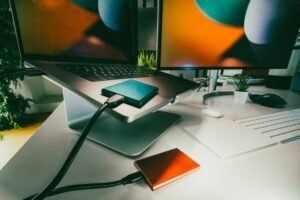
If your laptop still runs on a mechanical hard drive (HDD), this is the single most transformative upgrade available — it can cut boot times dramatically and make the whole machine feel new. Every MacBook has shipped with an SSD for years, so this mainly applies to older Windows laptops. An NVMe SSD is faster still than an older SATA one. For an aging Windows machine that’s otherwise fine, an SSD swap is often the difference between “replace it” and “good for another three years.”
| 🔎 When it’s actually time to replace your laptop
Sometimes the honest answer is that tuning has run its course. Consider replacing rather than fixing when:
But try the twelve fixes first. The majority of “dying” laptops are suffering from fixable software and configuration issues, not failing hardware — and the fixes above cost little or nothing. |
The bottom line
A slow laptop is usually a solvable problem, not a death sentence. Work down the list in order — startup apps and storage first, since they fix the majority of cases — and stop when your machine feels responsive again. Most people never reach the hardware steps at all. Spend the afternoon, save the money, and if you do eventually upgrade, you’ll at least know it was genuinely time. While you’re in a tidying-up mood, it’s also worth a quick check that none of your accounts have turned up in a data leak, and — if your laptop is your main work machine — that you’re getting the most out of the free tools available in 2026.
| 💬 Over to you
What finally slowed your laptop down?
Tell us which fix gave you the biggest jump in the comments. |
Frequently Asked Questions
Why is my laptop so slow all of a sudden?
A sudden slowdown is most often caused by a nearly full drive, too many startup and background apps, a pending or failed update, or malware. Start by restarting the laptop, then check your available storage and your startup apps — those three steps resolve the majority of sudden slowdowns. If it began right after an update, give the system a few hours to finish indexing in the background before assuming something is wrong.
Does upgrading RAM or an SSD make more difference?
If your laptop still uses a mechanical hard drive, switching to an SSD is the single biggest improvement you can make — it dramatically cuts boot and load times. If you already have an SSD but the machine struggles when multitasking, then more RAM is the better upgrade. As a rule: SSD first for overall speed, RAM second for multitasking, and check whether your model allows either before buying, since many thin laptops have both soldered in place.
Do “PC cleaner” or “booster” apps actually help?
Generally, no — and some make things worse by adding their own background processes or nagging you to pay. Everything a reputable cleaner does, you can do yourself for free with the built-in tools covered above: Storage Sense on Windows, the Storage recommendations on Mac, and Task Manager or Activity Monitor to find resource hogs. Stick to the built-in tools and skip the third-party “magic” apps.
How often should I do this maintenance?
A quick pass every few months keeps a laptop feeling fast: clear out downloads, empty the trash, review startup apps, and install pending updates. Restarting weekly and keeping 10–20% of your drive free are the two habits that prevent most slowdowns from creeping back in the first place.
| ✍️ Editor’s Observation
The thing I wish more people knew is that the tech industry quietly benefits from you believing your laptop is finished. A slow machine feels like a dead one, and “just buy a new one” is the path of least resistance — it’s also the most expensive and the least green. In my experience the reality is far more boring and far more hopeful: most slow laptops are just full and cluttered, and an afternoon of the free steps above brings them back. Try the fixes before the checkout page. Your wallet, and a landfill somewhere, will both thank you. |
— TechSun News, Tech Desk





2 thoughts on “How to Speed Up a Slow Laptop in 2026: 12 Fixes That Actually Work (Windows & Mac)”